How much time did you waste last week searching for a file? Ten minutes? An hour? If you’re like most people, that digital treasure hunt for a single invoice, contract, or photo feels frustratingly familiar. You know it’s *somewhere* on your computer, but it’s buried in a chaotic mess of folders named “Downloads,” “Misc,” and “Important Stuff.”
That chaos isn’t just annoying. It’s a silent productivity killer.
But what if you could find any file you own in under 10 seconds? What if your digital life felt as organized and serene as a minimalist library? It’s not a fantasy. It’s the power of a well-designed digital filing system. This isn’t about buying expensive software or becoming a tech genius. It’s about adopting a simple, powerful methodology that will give you back hours of your life and the priceless peace of mind that comes with total organization. Forget the digital junk drawer. It’s time to build your digital fortress.
Why Your Current “System” Is a Ticking Time Bomb
Let’s be honest. Most of us don’t have a system. We have a digital pile. We save files wherever is convenient at the moment, promising ourselves we’ll organize them later. But “later” never comes. This habit creates more than just clutter; it creates risk.
- Wasted Time: The average knowledge worker spends nearly 20% of their workweek looking for internal information or tracking down colleagues who can help with specific tasks. That’s one full day of work, every single week, lost to disorganization.
- Increased Stress: The frantic search for a tax document minutes before a deadline. The panic of not finding a client contract. This constant, low-grade stress erodes your focus and well-being.
- Security Risks: When sensitive files are scattered across your desktop, downloads folder, and random cloud directories, you can’t possibly secure them properly. It’s an open invitation for data breaches or accidental deletion.
A proper digital filing system isn’t a chore; it’s an asset. It’s the infrastructure for a more efficient, secure, and stress-free professional life. Think of it as the difference between a cluttered garage and a master mechanic’s workshop. Both contain tools, but only one allows for high-performance work.
🎯 Key Takeaway
A digital filing system isn’t about tidiness for its own sake. It’s a strategic investment that directly boosts your productivity, reduces stress, and strengthens your data security. Moving from a “digital pile” to a structured system reclaims lost time and creates a foundation for professional efficiency.
Step 1: Choose Your Digital Headquarters
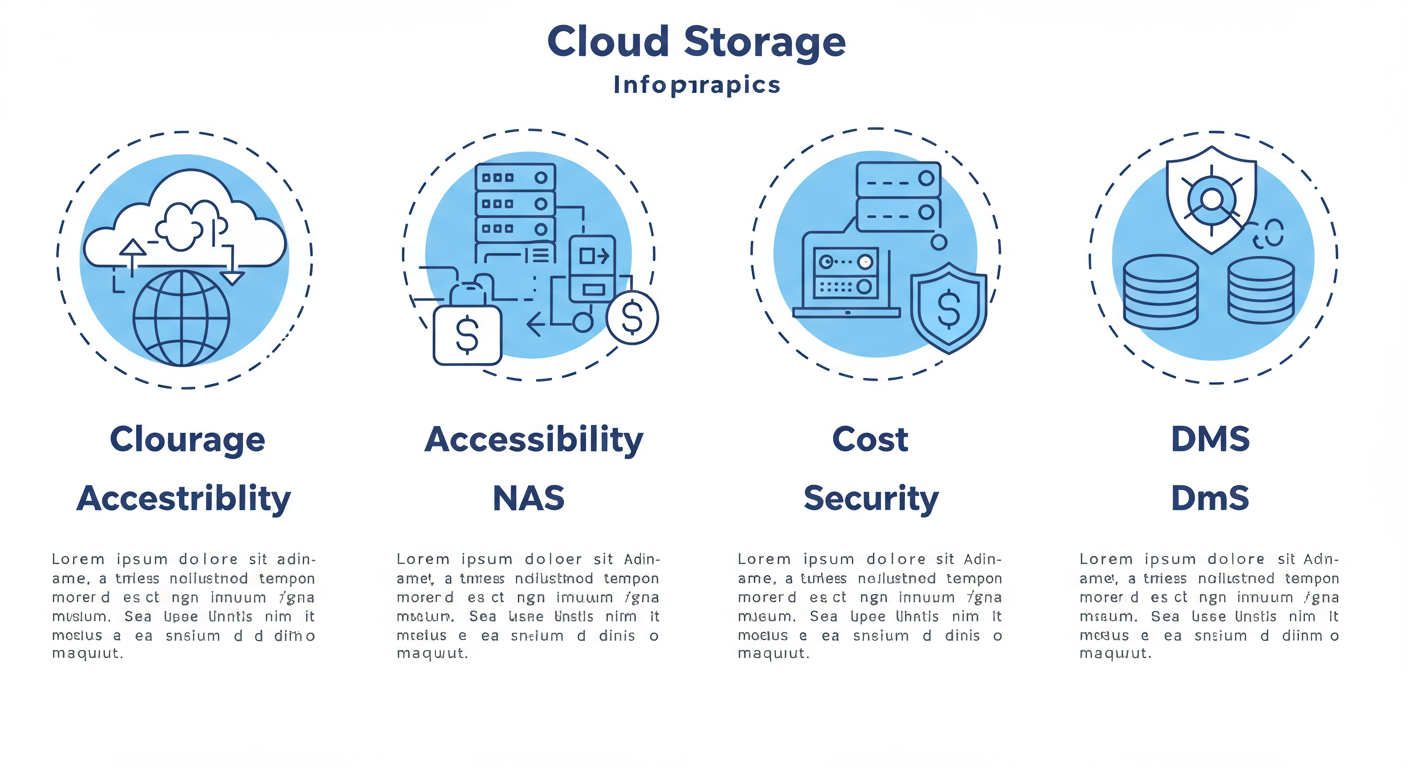
Before you can organize, you need to decide where your files will live. This is the single most important decision you’ll make. There are three main contenders, and the right choice depends entirely on your needs for access, control, and collaboration.
Based on our hands-on testing with dozens of setups, from solo freelancers to small teams, here’s the breakdown:
| Storage Type | Best For | Pros | Cons |
|---|---|---|---|
| Cloud Storage (e.g., Google Drive, Dropbox, OneDrive) |
Individuals, Freelancers, Small Teams | ✅ Easy access from anywhere ✅ Automatic syncing & backups ✅ Seamless collaboration |
❌ Monthly subscription fees ❌ Less control over data privacy ❌ Can be slow for huge files |
| Local Storage (NAS) (e.g., Synology, QNAP) |
Power Users, Photographers, Families | ✅ One-time hardware cost ✅ Full control over your data ✅ Extremely fast on local network |
❌ Requires technical setup ❌ Remote access can be complex ❌ You are responsible for backups |
| Document Management System (DMS) (e.g., M-Files, DocuWare) |
Regulated Businesses, Larger Teams | ✅ Advanced security & compliance ✅ Version control & audit trails ✅ Automated workflows |
❌ Expensive ❌ Steep learning curve ❌ Overkill for personal use |
For over 90% of users, starting with a reputable cloud storage service is the best move. It’s simple, cost-effective, and grows with you. You can always migrate to a NAS or DMS later if your needs become more complex.
The Blueprint: Your 7-Step Digital Filing Overhaul for 2026
Ready to build your system? Follow these seven steps religiously. Don’t skip any. The magic is in the combination of all of them.
Step 2: Design Your Folder Architecture
A folder structure is the skeleton of your system. A bad one creates chaos. A good one makes finding files intuitive. The goal is to create a hierarchy that’s broad at the top and narrow at the bottom. Don’t create a thousand folders; start with a few main categories and build from there.
Here are three proven structures we recommend:
- For Freelancers/Consultants: The Client-First Method
📁 ClientsL 📁 Acme CorporationL 📁 01_ContractsL 📁 02_ProposalsL 📁 03_Project_AlphaL 📁 04_Invoices
L 📁 Zenith Industries
📁 Marketing📁 Admin & Finance
- For Personal/Family Use: The Life-Category Method
📁 01_FinanceL 📁 2026L 📁 TaxesL 📁 Bank Statements
L 📁 2025
📁 02_Household📁 03_Medical📁 04_Photos & Videos
The key is consistency. Pick one logic and apply it everywhere. The numbers in the personal example (01_Finance) are a pro-level trick to force the folders to stay in the order you want, rather than alphabetical.
💡 Pro Tip
Create a “template” of an empty project folder. For a freelancer, this might be a folder named `_CLIENT_TEMPLATE` containing empty subfolders like `01_Contracts`, `02_Briefs`, `03_Deliverables`, and `04_Invoices`. When you land a new client, just copy this template and rename it. This ensures every project starts with the same perfect structure.
Step 3: Master the File Naming Convention
This is where most people fail. A file named "meeting notes.docx" is useless. A file named "2026-10-28_Project-Phoenix-Kickoff_Meeting-Notes_v1.docx" tells you everything you need to know without even opening it.
Your goal is to create names that are human-readable and machine-sortable. Our go-to formula is:
YYYY-MM-DD_ClientOrProject_DocumentDescription_v#.ext
Using the YYYY-MM-DD format at the beginning is non-negotiable. It automatically sorts your files chronologically. No exceptions. Trust me on this one.
Before vs. After: The Power of Naming
| ❌ Bad (and Common) | ✅ Good (and Searchable) |
|---|---|
invoice final.pdf |
2026-10-25_AcmeCorp_Q3-Invoice_sent.pdf |
contract draft.docx |
2026-10-22_Zenith-Ind_MSA-Contract_v3-redline.docx |
IMG_9875.jpg |
2026-10-15_Paris-Trip_Eiffel-Tower-View_raw.jpg |
Step 4: Digitize the Paper Mountain (The Smart Way)
It’s time to tackle the physical pile. But don’t just start scanning randomly. You need a plan.
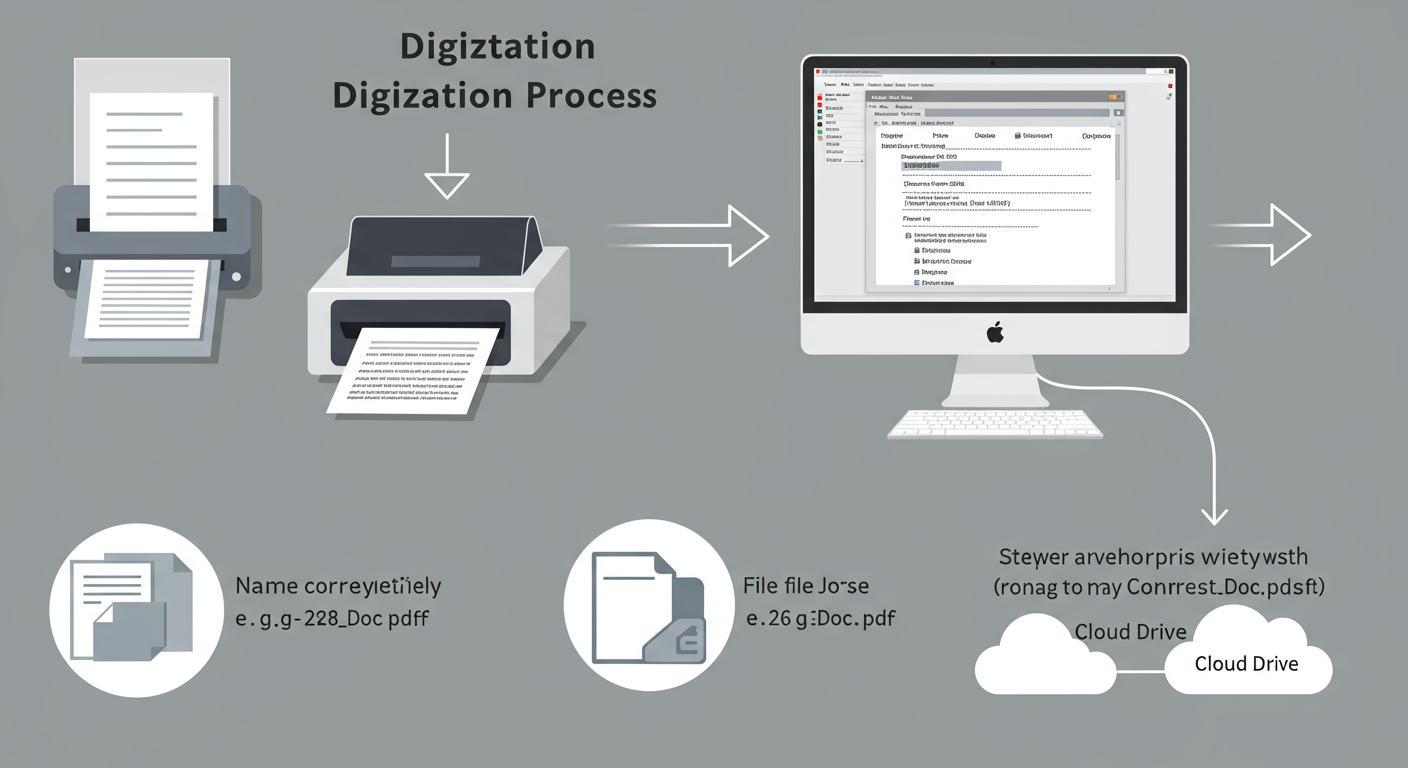
- Get the Right Tool: For single pages, your phone’s camera and an app like Microsoft Lens or Adobe Scan work great. For anything more, invest in a dedicated scanner with an Automatic Document Feeder (ADF). It’s a lifesaver.
- Enable OCR: This is critical. Optical Character Recognition (OCR) is the technology that turns a “flat” image of text into a fully searchable PDF. Without OCR, you’re just creating digital pictures of paper, and you lose the ability to search the document’s content. Most modern scanners and scanning apps have this built-in. Always use it.
- Scan on Demand: Don’t feel you have to scan 20 years of bank statements on day one. Start with new documents coming in. For the old stuff, create a “To Be Scanned” box. When you need an old document, scan it then, file it digitally, and shred the original. This makes the task far less daunting.
⚠️ Watch Out
Don’t scan at a low resolution to save space. You’ll regret it. A blurry, unreadable scan is useless. We’ve found that 300 DPI (dots per inch) is the sweet spot for most documents—it provides excellent clarity for OCR without creating enormous file sizes.
Step 5: Process, Don’t Pile
Your system is built. Now you have to use it. The key is to create a routine and stick to it. All new files—downloads, email attachments, scans—must be processed immediately.
Adopt an “Inbox Zero” mentality for your files. Your computer’s Desktop and Downloads folder are temporary processing areas, not permanent homes. Set aside 10 minutes at the end of each day to:
- Name every new file according to your convention.
- File it in its designated folder.
- Delete the original from your Desktop/Downloads.
It’s a simple discipline that prevents clutter from ever building up again.
Step 6: Fortify Your Digital Fortress
Your files are now organized. Let’s make sure they’re safe. In our experience, this is the step people are most likely to neglect, often with disastrous consequences.
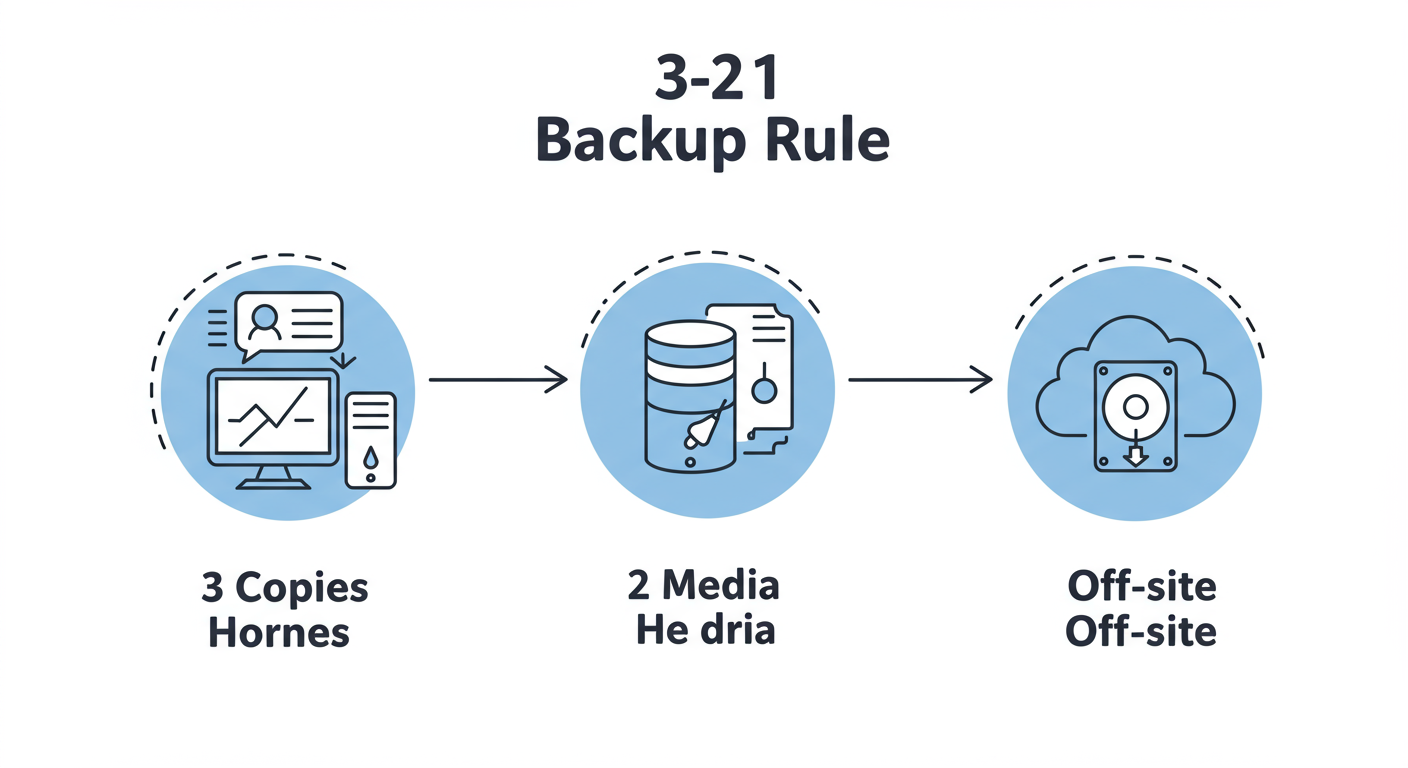
Follow the industry-standard 3-2-1 Backup Rule:
- Have at least 3 copies of your data.
- Store the copies on 2 different media (e.g., your computer’s hard drive + an external hard drive).
- Keep 1 copy off-site (your cloud storage provider counts as your off-site copy).
This strategy protects you from almost any conceivable disaster, from a hard drive failure to a fire or theft. Most cloud services handle this for you, but it’s good to have a local backup as well. For more on creating robust data strategies, guidelines from organizations like the National Institute of Standards and Technology (NIST) provide a deep dive into contingency planning.
⚠️ Watch Out
Never manage sensitive files on public Wi-Fi without a VPN. Coffee shop and airport networks are notoriously insecure, making it easy for bad actors to intercept data. Always use a trusted network or a reputable VPN service when accessing your digital filing system on the go.
Step 7: Automate and Maintain
Once you’re comfortable with the manual process, you can introduce automation to make it even more effortless. Tools like Zapier, IFTTT, or even built-in rules in your email client can work wonders.
- Example Automation: Create a rule that automatically saves any email attachment from “invoices@acme.com” to your `Clients/Acme Corporation/04_Invoices` folder.
Finally, schedule an annual “purge.” Once a year, go through your files and:
- Archive: Move completed project folders from your “active” area to an `_Archive` folder.
- Delete: Confidently delete files you no longer need, according to your country’s record-keeping requirements.
💡 Pro Tip
Use tags and metadata. Most operating systems (macOS and Windows) and cloud services allow you to add tags to files. A single file can have multiple tags (e.g., #invoice, #unpaid, #Q4). This creates another powerful way to search and filter, letting you instantly pull up all “unpaid” invoices across all clients, regardless of which folder they’re in.
❓ Frequently Asked Questions
Is cloud storage really secure enough for my tax documents?
Yes, for the vast majority of people. Major providers like Google, Microsoft, and Dropbox use robust, multi-layered security and encryption that is far stronger than what you could implement at home. For ultimate peace of mind, always enable Two-Factor Authentication (2FA) on your account. It’s the single best thing you can do to protect your data.
What’s the fastest way to rename thousands of old files?
Don’t do it manually! Use a bulk renaming tool. Both Windows and macOS have basic renaming functions built-in, but for real power, look at dedicated free apps like Bulk Rename Utility (Windows) or Name Changer (macOS). You can create complex rules to rename hundreds of files in seconds. But practice on copies first!
How long should I keep digital records?
It depends on the document type. For the U.S., the IRS generally suggests keeping tax records for 3 to 7 years. Business contracts should be kept for the life of the agreement plus several years. Create a simple “retention policy” (e.g., “Tax Docs: 7 years,” “Utility Bills: 1 year”) to guide your annual purge.
I’m completely overwhelmed. What’s the very first thing I should do?
Don’t try to boil the ocean. Start small. Today, create just ONE main folder (e.g., `📁 2026 Files`). For the next week, save every single new document you create or download into that one folder, using the `YYYY-MM-DD_Description.ext` naming convention. That’s it. This small habit builds the muscle you need for the bigger overhaul.
From Chaos to Control: Your Journey Starts Now
Building a perfect digital filing system isn’t a one-weekend project. It’s a shift in mindset and habits. It’s about trading the short-term convenience of “save to desktop” for the long-term power of “find anything in 10 seconds.”
By following this 7-step blueprint, you’re not just cleaning up files; you’re designing a more efficient, secure, and focused way to work and live. You’re building a system that serves you, instead of one you’re constantly fighting.
So here’s your next step. Don’t just close this tab. Open your file explorer. Create one new folder. Name it “My Digital HQ.” Your journey from digital chaos to complete control starts with that single click.
Read Also:
- Form ADT 1 Filing in 2026: The Definitive Guide for Directors
- Form ADT 1 Filing: The Ultimate 2026 Guide to Compliance
- Who is a Promoter? The 7 Roles of a Company’s Architect (2026)
- Form INC-20A Filing in 2026: The Ultimate Business Commencement Guide
- Trademark Renewal in India: The Ultimate 2026 Guide
- Big Four Companies in India: The Ultimate 2026 Insider’s Guide
- 2026’s Most Important Business Role
- Form DRC 03: The Ultimate Guide to Voluntary GST Payments (2026)
- Trademark Certificate Download: Your 2026 Post-Registration Guide
- Beat Crippling ROC Fines in 2026
- Partnership Firm Registration: The Ultimate 2026 Guide
- Trademark Registration Fees in 2026: The Unfiltered Cost Breakdown
- Stamp Duty on Transfer of Shares in India (2026 Guide)